
Raw Materials & Inventory
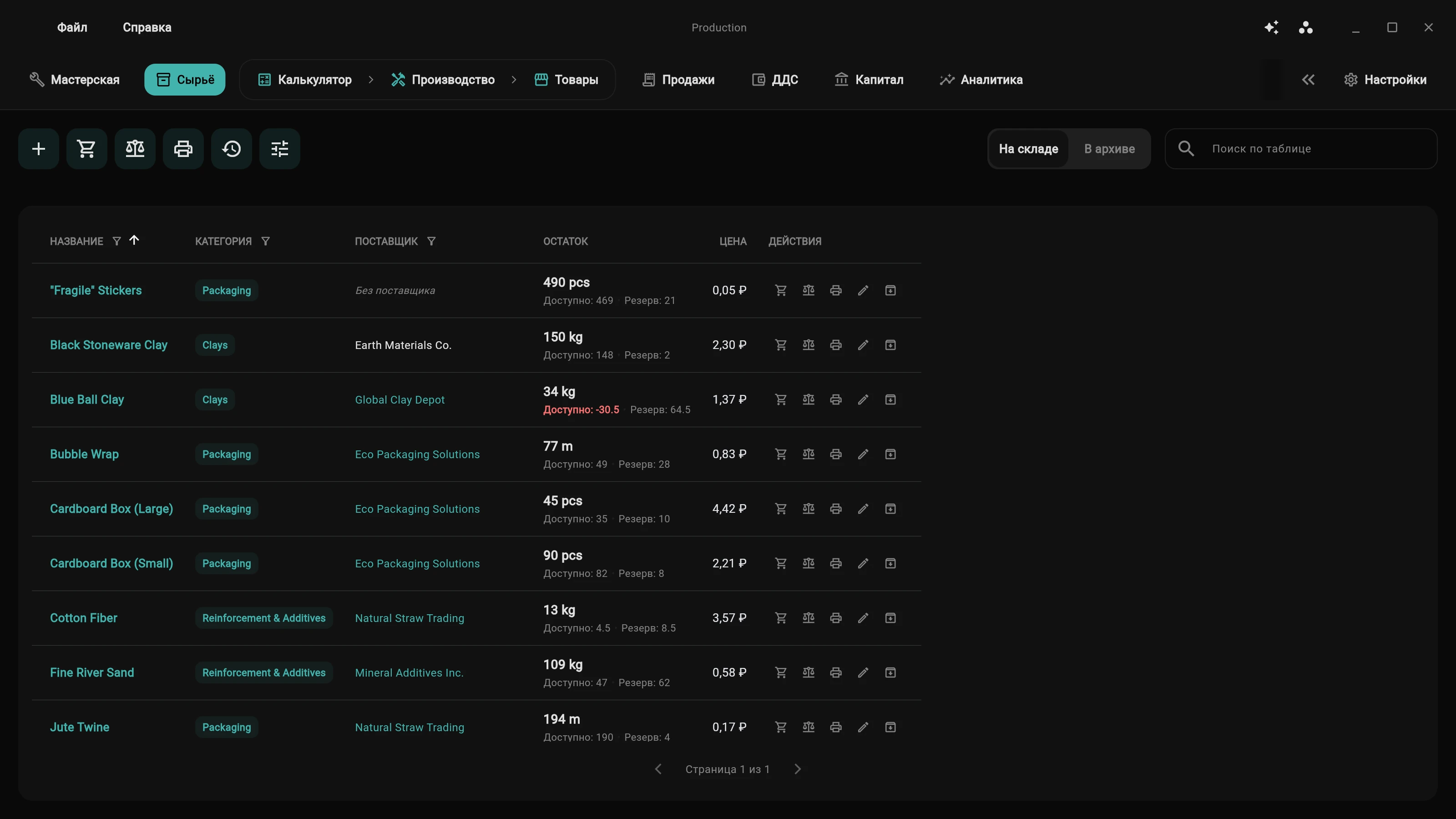
The "Warehouse" tab serves as the central hub of physical supply management across your business. Whether you stock raw materials for manufacturing, spare parts and service consumables for repair studios, or packaged wholesale inventory for retail and e-commerce marketplaces, physical stock sitting on shelves represents frozen working capital.
In OmniCraft ERP, warehouse inventory does far more than count quantities in units, meters, or kilograms. It connects directly with managerial financial accounting: it computes true inventory valuation using the Moving Average Cost (MAC) method, equitably distributes shipping fees across line items, and generates automatic expense entries in the Cash Flow register (DDS).
Costing Mechanics: Moving Average Cost (MAC)
Supplier prices fluctuate constantly due to inflation, seasonal discounts, or changing order volumes. Pricing inventory strictly by the most recent invoice overvalues older stock; pricing by outdated legacy costs leads to hidden operating losses.
OmniCraft ERP implements the industrial accounting standard — Moving Average Cost (MAC):
Whenever materials are consumed by a product recipe or booked into a client service order, OmniCraft deducts them at the current moving average cost. You never need to track which specific historical box a piece came from—your profit margin is protected automatically.
Shipping increases unit cost
Freight and courier delivery fees are not an abstract overhead expense; they are an intrinsic part of the material's acquisition cost. In OmniCraft ERP, delivery charges are automatically absorbed into the unit valuation of each stocked item.
Industry-Specific Inventory Workflows
Depending on your chosen workspace profile, inventory adapts to your operational rhythm:
Manufacturing & Craft Workshops
The warehouse holds raw materials that are physically transformed into finished goods:
- Typical inventory: sheet metal, timber, genuine leather, textiles, pottery clay, 3D-printing filaments, thread, hardware, adhesives, and packaging boxes.
- Recipe integration: consumption norms defined in the "Calculator" module link directly to inventory stock cards. When an assembly batch is launched on the workbench, the software reserves required quantities and deducts exact millimeters, grams, or square decimeters upon job completion.
Service Centers & Repair Studios
The warehouse acts as a parts depot for replacement components and job supplies:
- Typical inventory: LCD panels, flex cables, microchips, filters, brake pads, drive belts, copper pipes, plumbing fittings, solder, hardware assortments, and sanitizing chemicals.
- Service ticket integration: parts and materials are added directly into client work orders. OmniCraft deducts items from inventory the moment the ticket is completed, billing parts to the customer and recording income into Cash Flow.
Retailers & E-commerce Marketplace Sellers
The warehouse manages rapid merchandise turnover of pre-packaged goods:
- Typical inventory: factory-packed merchandise, custom branded boxes, poly courier mailers, reinforced tape, protective void fill, and barcode labels.
- Stockout prevention: setting low-stock alert thresholds ensures timely reorders, preventing out-of-stock penalties and maintaining high storefront rankings on digital marketplaces.
Material Stock Card & Smart Controls
Adding a new item to your catalog is done via the "+" (New Item) button in the top toolbar. Each material card contains essential parameters:
- Name: clear operational title (e.g., “T-Slot Extruded Aluminum Profile 20×20 mm” or “OLED Display Assembly Module”).
- SKU / Barcode: unique internal inventory code. If left blank, OmniCraft automatically generates a sequential SKU formatted as
SKU-0001, preventing duplicate lookup errors during barcode scanning. - Category: functional grouping (e.g., “Metals”, “Hardware”, “Electronics”, “Packaging”). Categories can be customized directly from the card dialog.
- Unit of Measure: physical measurement standard (linear meters, sq. decimeters, pcs, kg, liters, ml). Choose the smallest practical unit used during actual production or service jobs.
- Safety Threshold (Min Stock): buffer quantity that highlights the table row when stock runs critically low:
- Manual threshold: a fixed number (e.g., alert when fewer than 5 units remain).
- Adaptive auto-calculation: entering
0directs the system to evaluate your last 20 batch purchases and maintain a dynamic 20% safety margin.
Multiple Suppliers & Web Bookmarks
Link multiple suppliers to a single inventory card (e.g., an overseas bulk wholesaler and a local retailer for quick restocks):
- "Make Primary" (Pin): the primary URL appears directly inside the main warehouse table cell. Clicking the link opens the supplier's reorder portal in your browser instantly.
- "Show in Table": alternative secondary vendors are tucked into a clean
(+N)badge, keeping the operational view uncluttered.
Material Location Management and Bin Tracking
In a busy workshop or repair center, searching for misplaced materials consumes valuable bench time. OmniCraft ERP includes a physical location directory that structures inventory across racks, shelves, and storage bins.
Purpose and Storage Hierarchy
Location management connects digital inventory records with your physical workshop floor plan:
- Precise Floor Navigation: Craftsmen and apprentices immediately see the exact shelf or storage drawer on the stock card and warehouse table (e.g., "Rack A, Shelf 2, Bin 04").
- Error-Free Batch Assembly: When assigning production tasks or assembling repair work orders, designated bin addresses prevent mix-ups between similar leather hides, alloy types, or electrical components.
- Streamlined Cycle Counts: Physical inventory auditing proceeds systematically rack by rack without requiring a full workshop shutdown.
Prerequisites
Before setting up bin addresses, establish a systematic workshop labeling convention: identify racks with letters, shelves with numbers, and component bins or organizers with two-digit codes.
Step-by-Step Location Setup and Material Assignment
- Open the Locations Management Window:
- When creating a new stock card via "+" (New Item) or editing an existing position, click the pencil icon button beside the "Location / Shelf" field;
- The "Manage Locations" modal dialog opens.
- Add a Physical Storage Location:
- Enter the location name into the text input (e.g., "Rack 1 / Shelf B", "Chemical Cabinet, Bay 3");
- Click "Add". The location is registered immediately in your system catalog.
- Edit and Rename Storage Zones:
- If a rack is relocated or relabeled, click the pencil edit icon next to the location name in the list;
- In the edit dialog, update the name in "Name" and click "Save";
- All inventory items linked to this location automatically reflect the updated address without manual re-linking.
- Remove Retired Locations:
- When storage shelving is decommissioned, click the red trash icon beside the location;
- The system removes the location safely from quick-selection menus.
- Assign Location and Inspect the Warehouse Table:
- Click "Close" in the location dialog;
- In the material card, select your created storage location from the dropdown menu;
- Click "Save". The location appears in the main warehouse table location column, speeding up filtering and material retrieval during batch assembly.
Print Labels with Location Codes
When generating inventory tags via the "Batch Label Printing" tool, the software can print the designated location address in bold beneath the Code128 barcode. This enables labeling both material packaging and physical shelf bins for fast verification with a handheld barcode scanner.
Batch Purchases & Automated Logistics
The core restocking operation is triggered by the "Batch Purchase" button (shopping cart icon in the top toolbar).
Do not confuse purchases with inventory adjustments
Never enter purchased stock via manual inventory adjustments. Adjustments modify physical quantities on shelves without recalculating purchase price and without creating a payment record. All supplier invoices must be posted through "Batch Purchase".
Equitable Freight Distribution by Value
When a supplier ships a consolidated order, the freight invoice covers the entire shipment. Dividing delivery costs equally per item skews your margins: inexpensive supplies artificially spike in price, while premium materials are undervalued.
OmniCraft ERP enforces proportional freight distribution based on item value:
| Purchased Item | Batch Value | Share of Invoice | Freight Share ($100 total delivery) | Final Batch Cost Basis |
|---|---|---|---|---|
| High-Value Material (e.g. electric motor or leather) | $900.00 | 90% | + $90.00 | $990.00 |
| Low-Cost Consumable (e.g. screws or tape) | $100.00 | 10% | + $10.00 | $110.00 |
| TOTAL: | $1,000.00 | 100% | $100.00 | $1,100.00 |
Upon confirming the purchase, OmniCraft instantly:
- Receives exact physical quantities into shelf stock.
- Updates each item's Moving Average Cost (MAC), including its fair share of delivery.
- Generates two clear expense entries in the Cash Flow register: "Raw Material Purchase" and "Material Delivery".
Warehouse Labeling & Offline Barcode Printing
OmniCraft ERP features a built-in barcode label engine that operates 100% locally and offline without external cloud dependencies.
Labels can be generated individually from a material's card or printed in bulk for an entire storage aisle via "Batch Label Printing".
Label Encoding Modes
| Mode | Code Type | Practical Use Case |
|---|---|---|
| SKU Code | Linear Code128 Barcode | Rapid inventory lookup using standard handheld USB/Bluetooth scanners |
| Supplier Reorder | Direct Web URL QR Code | Scanning with a mobile phone camera opens the supplier's product page for immediate reordering |
| Material Spec Sheet | Plain-text QR Code | Read technical specifications, shelf balance, and storage guidelines without opening a PC |
| Hybrid Mode | Barcode + QR Code | Optimal for standard shelf tags starting at 58×40 mm |
| Text Only | Clean high-contrast typography | Suitable for compact bins, vials, and hardware drawers (30×20 mm) |
Mechanical Printer Calibration (X / Y Offset)
Different printing hardware has physical feeding tolerances: standard office laser printers experience slight paper drag on A4 sheets, while direct thermal roll printers may drift slightly around label gaps.
The print dialog provides dedicated "Printer Calibration (mm)" fields:
- Vertical Offset (Y, mm): shifts layout up or down (e.g.,
-2.0moves print output exactly 2 mm upward). - Horizontal Offset (X, mm): centers print output perfectly within pre-die-cut adhesive borders.
- Border Styling: borderless (for pre-cut die-cut rolls), dashed cut lines (for scissor cutting from standard A4 paper), or solid decorative borders for product tags.
Calibration parameters are saved once and automatically applied to all subsequent print runs.
Stocktakes, Waste & Inventory Adjustments
Beyond regular supplier receipts, daily workshop realities require stock reconciliation:
- Physical Inventory Stocktake: during periodic shelf counts, enter actual counts on hand. OmniCraft logs variances (surplus or shortage) without distorting unit moving average cost (MAC).
- Scrap & Damage Write-offs: when discovering defects, transit damage, or cutting waste, write off materials with an attached explanation. The written-off value accurately reduces your balance sheet Capital.
- Audit Operations Log: every movement (receipt, reservation, production deduction, return, adjustment) is recorded in an immutable historical ledger complete with timestamps.