
Workshop: Assets & Equipment Tracking
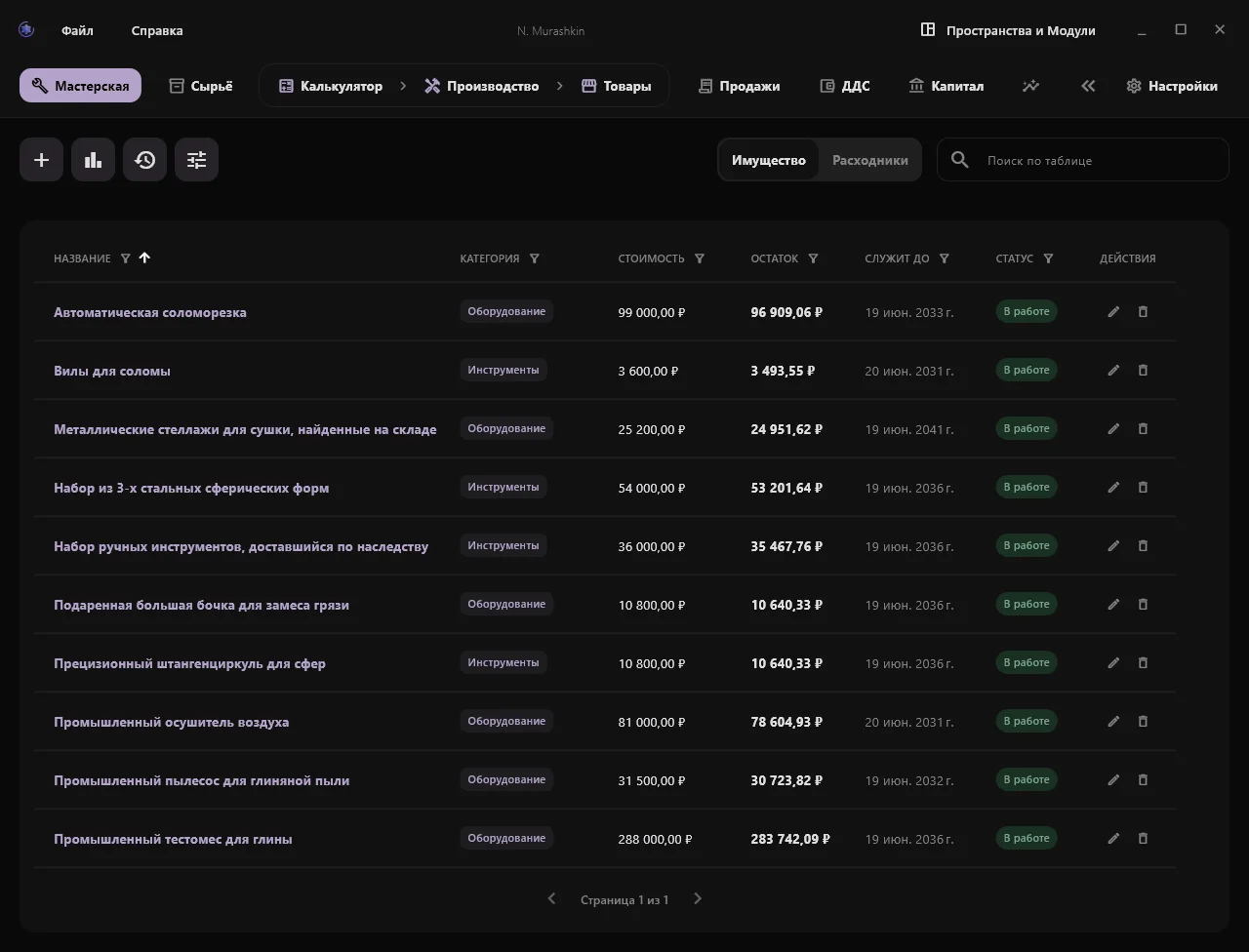
The "Workshop" tab is the registry of your manufacturing property. This is not just an inventory list of items sitting in your room. This section manages tangible assets that form a significant part of your business value (Capital).
Here, you manage machinery, high-value tools, electronics, consumables, and premises used in your workflow.
Economic Rationale: Transforming Expenses into Capital
In professional managerial accounting, the purchase of expensive equipment is viewed differently than everyday household spending. OmniCraft ERP relies on two foundational economic rules:
- Capital preservation upon purchase. Buying a laser engraver or a muffle furnace does not make you poorer. You simply transfer value from "liquid cash" into "productive equipment." Your business capital remains unchanged—only its internal structure shifts.
- Depreciation without complex routine. Unlike heavy industrial systems requiring you to calculate machine-hours and log the operating time of every single drill, OmniCraft ERP takes a lean approach:
- The program automatically calculates and displays the total exact monthly depreciation of your entire workshop on the statistics panel.
- Relying on this figure and your average production volume, you can establish an averaged global overhead norm under Settings.
- In the Calculator, this norm can be adjusted via multipliers for each product. Thus, equipment costs are gradually recovered when selling finished products.
Operating Modes: Property & Consumables
The table interface is divided into two independent tabs, switched via the top panel. Each tab features dedicated column visibility settings and filters.
1. Property
The primary registry of long-term assets. This includes machinery, furniture, and tools engineered for multi-year service. For these items, specifying a lifespan is required, allowing the software to compute monthly depreciation and gradual residual value reduction.
2. Consumables
The registry of fast-wearing supplies and auxiliary items (e.g., milling bits, drill bits, craft chemicals, brushes). The core difference is that consumables are not depreciated. Their entire purchase cost is immediately written off as a business expense (in the Cash Flow Ledger) at the moment of acquisition. Lifespans are not assigned to consumables, as their value transfers into production immediately.
Practical Guide: Where to Begin?
When initially setting up your database, common questions arise: what date to choose for older equipment, how to evaluate gifts, and what lifespan to set.
Below is a quick cheat sheet and real-world production cases to help you configure your workshop assets with confidence.
Craftsman's Cheat Sheet (Guidelines for Entry)
| Asset Type | Example | Valuation | Lifespan | Mode |
|---|---|---|---|---|
| Heavy Machinery | Industrial Clay Mixer | Original (actual) price | 10–15 years | Property |
| Molds & Devices | Set of 3 Spherical Steel Molds | Actual purchase price | 5–10 years | Property |
| Auxiliary Equipment | Gifted Large Mixing Barrel | Estimated market value | 10 years | Property (Without Cash Flow expense) |
| Fast-Wearing Supplies | Mold Release Oil | Purchase price + shipping | 0 | Consumables |
Practical Scenarios (Cases)
Case A: Gratuitous property, findings, and gifts
Situation: Registering an inherited hand tool set ($500) or metal drying racks found in storage ($350).
Solution:
- Acquisition Date: Current date (or approximate date received).
- Initial Cost: $500 (estimated market value today).
- Lifespan: 10 years.
- Option "Without Cash Flow expense": Strictly enabled.
Economic Result: Workshop capital increases by $500 (business assets grew), while the operation does not generate an expense in Cash Flow and leaves cash balances unaffected since no cash payout occurred.
Case B: Purchasing new equipment with shipping costs
Situation: You bought a new industrial clay mixer for $4,000 and paid $200 to a freight company for delivery.
Solution:
- Acquisition Date: Date of actual purchase.
- Initial Cost: $4,000.
- Shipping: $200.
- Lifespan: 15 years.
- Option "Without Cash Flow expense": Disabled.
Economic Result: The program logs a $4,200 outflow in Cash Flow (categorized into Equipment and Logistics). The asset is placed on your balance sheet at $4,200, and systematic depreciation begins from that day forward.
Case C: Purchasing consumable materials
Situation: Procuring mold release oil ($40) or heavy-duty trash bags ($30).
Solution:
- Acquisition Date: Purchase date.
- Initial Cost: $40.
- Option "Consumable": Strictly enabled (lifespan field is automatically locked).
Economic Result: The full $40 is immediately recognized as an operating expense in Cash Flow. The item appears in the "Consumables" tab and does not generate depreciation, keeping balance calculations clean.
Case D: Historical equipment (purchased before using the software)
Situation: You purchased an automatic cutter 3 years ago for $1,500 and want to add it now.
Solution:
- Acquisition Date: Historical date (select approximate purchase date 3 years ago in the calendar).
- Initial Cost: $1,500 (original purchase price).
- Lifespan: 10 years (total lifespan from purchase).
- Option "Without Cash Flow expense": Disabled.
Economic Result: The program logs the historical $1,500 investment in Cash Flow. It automatically computes accumulated depreciation for the past 3 years and displays the accurate residual value (approx. $1,050) in your active business Capital.
Adding a New Asset
To add a new item, click the "Add Asset" button at the top of the screen.
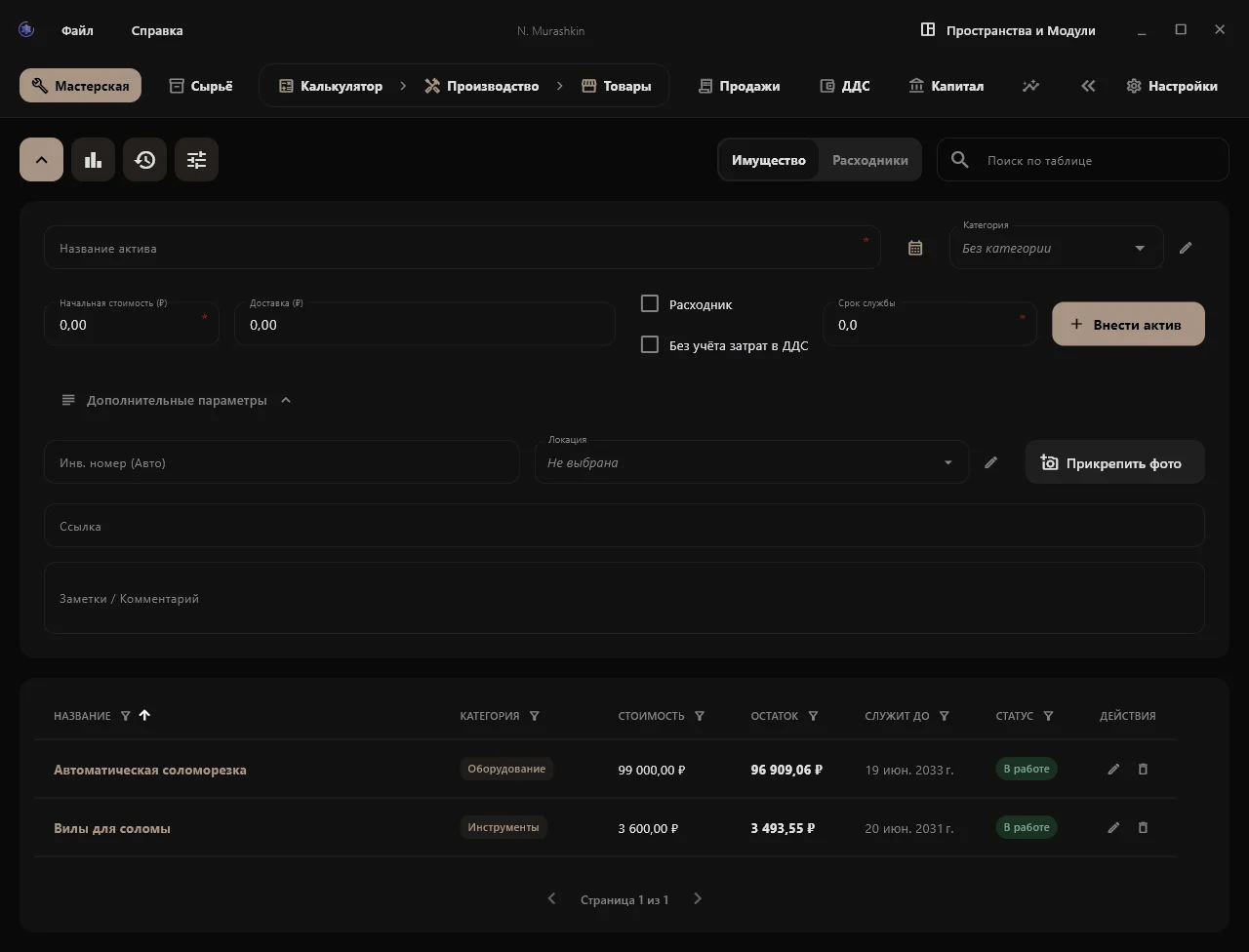
The software applies the valuation start point principle: if you are entering an older tool acquired prior to using OmniCraft ERP, simply evaluate its current worth as if selling it today and set the approximate remaining lifespan.
Basic Parameters
- Asset Name: Clear and concise title.
- Acquisition Date: The exact date the equipment was added to your balance sheet. Defaults to today, but can be backdated to record historical data.
- Category: Group for structure and reporting (e.g., Equipment, Tools, Premises).
- Initial Cost: Purchase price (for new items) or current valuation (for older assets). Recorded as an outflow in Cash Flow unless "Without Cash Flow expense" is enabled.
- Shipping: Additional delivery expenses, automatically logged in Cash Flow under Logistics.
- Lifespan (Years): Expected service duration. Linear depreciation and residual value tracking begin strictly from the recorded acquisition date.
Special Settings (Checkboxes)
Two checkboxes let you fine-tune the financial logic:
"Consumable" Checkbox
Enable when adding minor tools or workshop supplies. The software locks the lifespan field and assigns the item to the "Consumables" tab. The entire amount is expensed immediately.
"Without Cash Flow expense" Checkbox
Enable if the tool was gifted, brought from home, or funded by a targeted grant. The equipment increases business Capital without generating an outflow in Cash Flow.
Additional Parameters
Expand the block at the bottom of the form to configure:
- Inv. Number (Auto): Leave blank for auto-generated identifiers (
INV-XXXX). - Location: Physical placement (specific shelf or rack).
- Photo: Attach an image, automatically compressed to WebP format.
- Link: Supplier URL or documentation link.
- Notes: Freeform commentary.
Asset Lifecycle & Available Actions
Equipment requires servicing, revaluations, or disposal over time. All actions are accessible via action buttons in table rows.
Asset Profile (Interactive Card)
Clicking any asset name opens its full passport card.
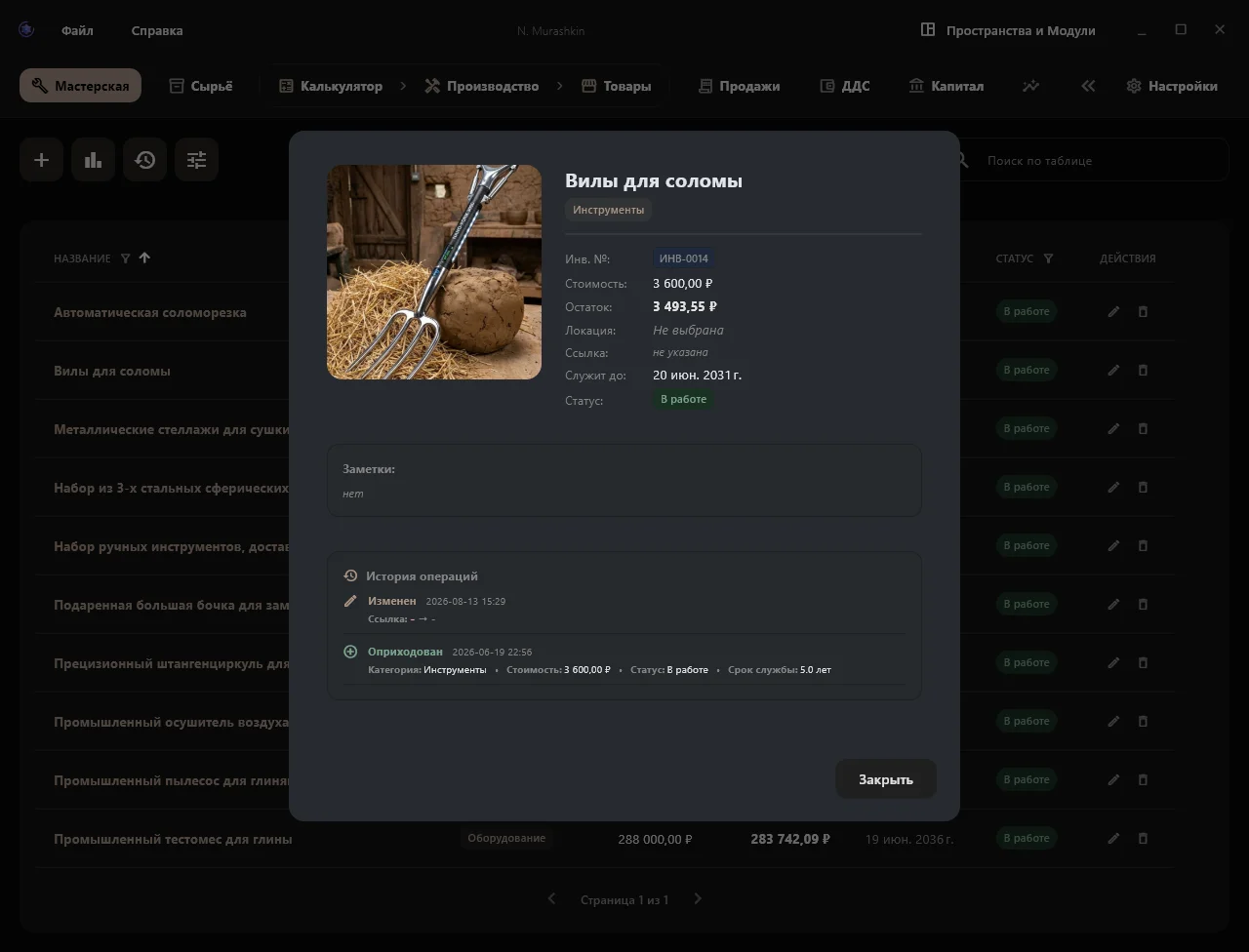
It displays photos, specifications, residual value, and an individual operations log tracking all historical events for that specific object.
Managing Property
Editing: Correct titles, update categories, or replace photos.
Revaluation & Modernization: If tool value increases (upgrades or inflation), click "Revaluate" in the edit dialog. Set a new book value and remaining lifespan. Depreciation schedules recalculate from the Revaluation Date. If upgrades required paid repairs or parts, enable "Paid service / repair (Cash Flow expense)" to log the cost in Cash Flow.

Asset revaluation modal Status Changes: Switch between "Active" and "In Reserve" (temporarily idle).
Disposal (Trash icon): Write off broken or lost assets. Historical Cash Flow transactions are preserved, while total workshop Capital decreases.
Managing Consumables
Replenish: Click the cart icon to top up stock (e.g., buying more paint). Enter purchase price and shipping; amounts are added to total expenditure and logged in Cash Flow.
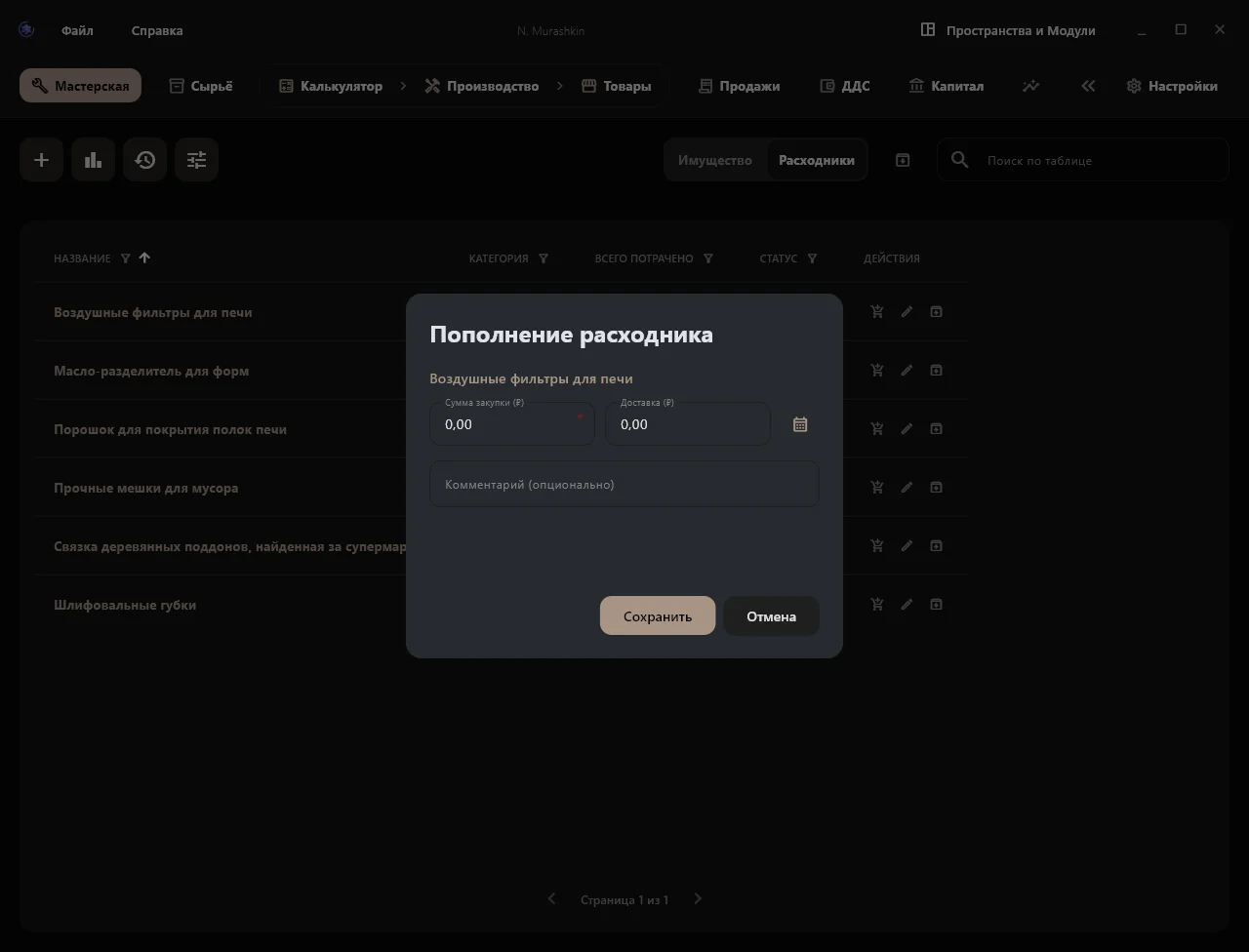
Consumable replenishment modal Archiving: Move discontinued consumables to archive (box icon) to hide them from active lists. View and restore archived items via the top toolbar button.
Workshop Operations Log
Click the clock icon in the top toolbar to open the Operations Log.
This chronological registry tracks:
- New asset additions.
- Edits (logging previous and updated values).
- Revaluations, replenishments, archiving, and write-offs.
Search, Sorting & Filtering
Tools for navigating large asset catalogs:
- Search Bar: Real-time search across titles, inventory numbers, categories, and locations.
- Sorting: Click any column header (e.g., "Residual" or "Serves until") to sort ascending or descending.
- Filtering: Hover over column headers to access multi-select checkboxes for statuses, categories, or locations.
- Quick Reset: Reset buttons appear above the table whenever filters or sorting are applied.
Tables feature pagination (30 rows per page) for responsive performance.
Tab Interface Settings
Click the settings (sliders) icon in the top toolbar to configure:
- Statistics Display: Toggle between modal popup and pinned sidebar column (auto-hides on compact screens).
- Column Visibility: Hide unused columns independently for Property and Consumables tables.
- Additional Parameters Visibility: Toggle optional input fields (locations, URLs, photos) in addition dialogs.
Note: Manage category and location directories by clicking the pencil icon next to dropdown selectors.
Workshop Statistics (Analytical Block)
Click the analytics icon in the top toolbar to display workshop metrics:
- Residual Asset Value: Total currency value of all physical assets adjusted for accumulated depreciation.
- Current Monthly Depreciation: Value reduction of your tool pool every 30 days.
- Capital Structure: Progress bars showing asset concentration across categories (e.g., Machinery 75%, Tools 25%).
- Tool Pool Summary: Total item count, active units, and items currently held in reserve.
Frequently Asked Questions (FAQ)
What if I made a mistake estimating an asset's lifespan?
Depreciation is recalculated dynamically. You can adjust the lifespan at any time using "Revaluate" in the asset profile card. Starting from the revaluation date, the software computes wear according to new parameters without distorting past financial history.
How do I account for market equipment price appreciation?
If the market value of your equipment rises, perform a soft revaluation: open the asset profile, click "Revaluate", and enter the updated, higher book value. Your business Capital increases while cash balances remain unaffected, as no physical transaction occurred.
I lost the purchase receipts for older tools. What price should I enter?
This depends on whether business funds (your personal investments) were spent:
- Purchased for the workshop: Enter the original purchase cost (even approximate) and select the historical purchase date in the calendar. The software records this as an investment in Cash Flow and automatically computes depreciation up to the present.
💡 Idle equipment tip: If an asset sat in storage unused and you want depreciation to begin only now, register it with its historical date first, then immediately open its card and perform a "Revaluation" using today's date and the full lifespan. - Gifted or personal property: Estimate its current fair market value today, set today's date, specify remaining lifespan, and strictly enable "Without Cash Flow expense".